How to Use Dark Gateway OS
Comprehensive illustrated guide covering initial boot, network configuration, proxy chaining, granular firewall rules, and built-in applications.
Step 1: Initial Boot & Tor Setup (Boot Isolation)
On system boot, network is paused (DisableNetwork 1) to prevent accidental data leaks. Choose Direct Tor or paste a WebTunnel / obfs4 bridge string in Tor Connection Setup, then click [Connect].
- • Direct Tor: Direct connection to the Tor network (suitable for uncensored networks).
- • Configure custom bridge: Use
webtunnelorobfs4bridges to bypass strict DPI censorship.
Step 2: Network Adapters Configuration (Network GUI)
Configure WAN eth0 (DHCP/Static IP) and internal LAN eth1 gateway (10.152.152.10) with DHCP server via Cmd+n.
10.152.152.10, Subnet 255.255.192.0, integrated DHCP pool for connected workstations. Network Adapters Configuration (Cmd+n)
Step 3: Multi-Protocol Proxy Chaining (Proxy Wizard)
Import vless:// Reality or ss:// Shadowsocks links into Proxy Wizard (Cmd+p) to exit through high-speed private nodes.
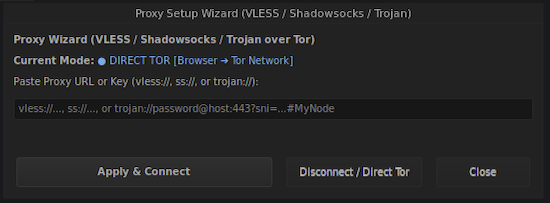 Proxy Setup Wizard (Cmd+p)
Step 4: Granular Firewall (Firewall & Security Control Center)
Manage 8 nftables modules (Cmd+f) to allow or block network traffic for Chromium, Telegram, updates, or trigger the WAN Panic Killswitch.
 Firewall & Security Control Center (Cmd+f)
Step 5: Private Web Browsing & Messaging
Ungoogled Chromium is pre-configured for SOCKS5 127.0.0.1:1080 with zero WebRTC/DNS leaks. Telegram runs in an isolated group with persistent proxy profiles.
🌐 Ungoogled Chromium
 BrowserLeaks: 0 DNS/WebRTC leaks, anonymous exit IP.
💬 Telegram Desktop
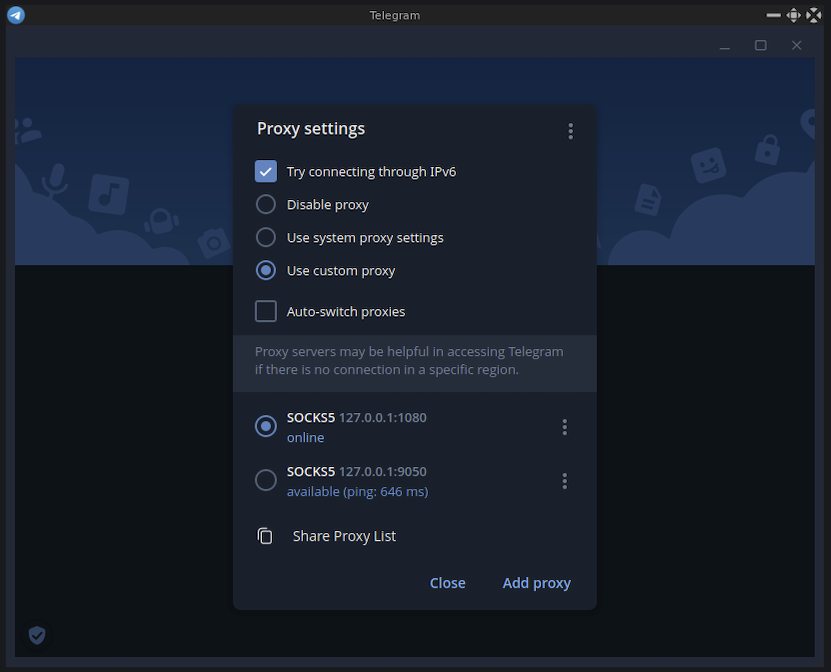 Pre-configured persistent SOCKS5 proxy profile: Online.
Step 6: Session Trace Elimination (Wipe Privacy Traces)
Instantly purge browser history, cache, Telegram sessions, and bash logs in 1 click (Cmd+Shift+k) or automatically on system shutdown.
 Wipe Privacy Traces (Cmd+Shift+k)
Step 7: Safe Upgrades (System & Tor Update Manager)
Safely upgrade Debian security packages and Tor daemon with automated AwesomeWM config backups and health audits.
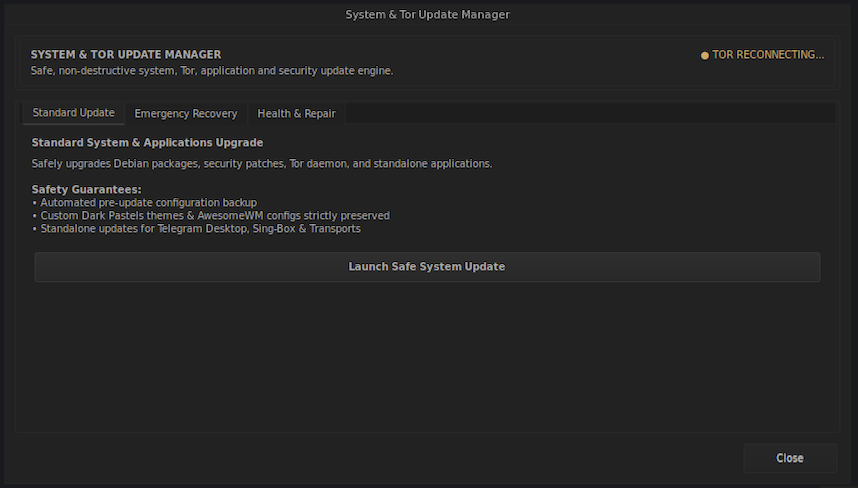 System & Tor Update Manager
Step 8: System Monitoring & Built-in Utilities
Live monitoring via Conky HUD, Nyx Tor Monitor (Cmd+m), Midnight Commander, Bash Terminal, Mousepad, and audio manager.

Conky Real-time HUD
Sidebar HUD: CPU/RAM load, eth0/eth1 traffic, active listeners.

Nyx — Tor Monitor
Interactive Tor monitor (Cmd+m) with live bandwidth graphs.

Midnight Commander (mc)
Dual-pane terminal file manager in Dark Pastels color scheme.

Terminal Console
Minimalist Bash terminal with desktop shortcut integration.

Mousepad Text Editor
Clean and fast GTK3 text editor for config files and keys.

Volume & Audio Control
Native C/GTK3 volume and microphone control widget.